> For the complete documentation index, see [llms.txt](https://docs.3scloud.io/llms.txt). Markdown versions of documentation pages are available by appending `.md` to page URLs; this page is available as [Markdown](https://docs.3scloud.io/3s-cloud-workstation/tutorial/creating-a-workstation.md).
# Creating a Workstation
Follow this guide to customize and deploy a high-performance GPU workstation tailored to your specific project needs.
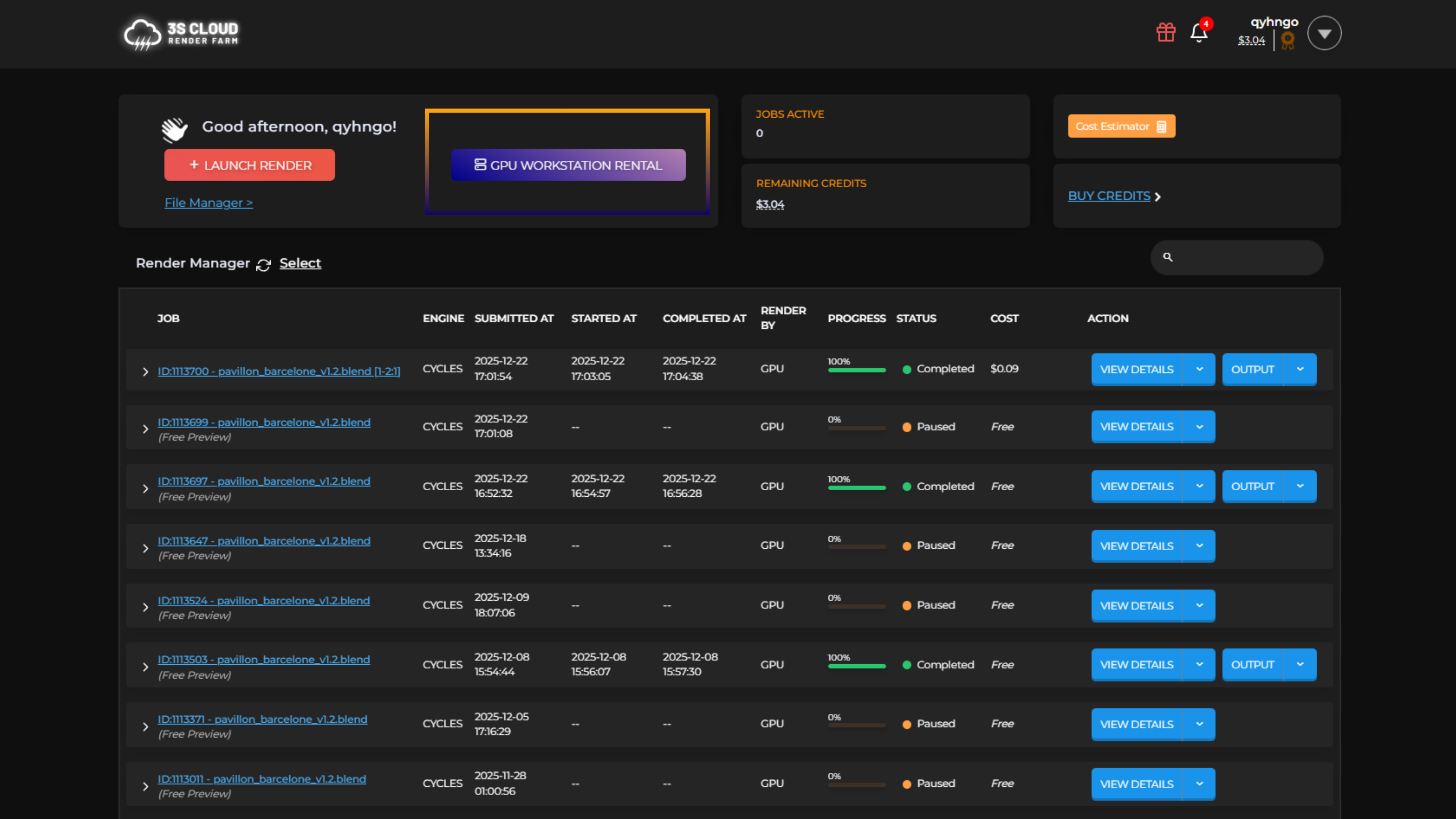
### Step 1: Access the Rental Hub
* From your main Dashboard, click on the GPU Workstation Rental button to start the configuration process.
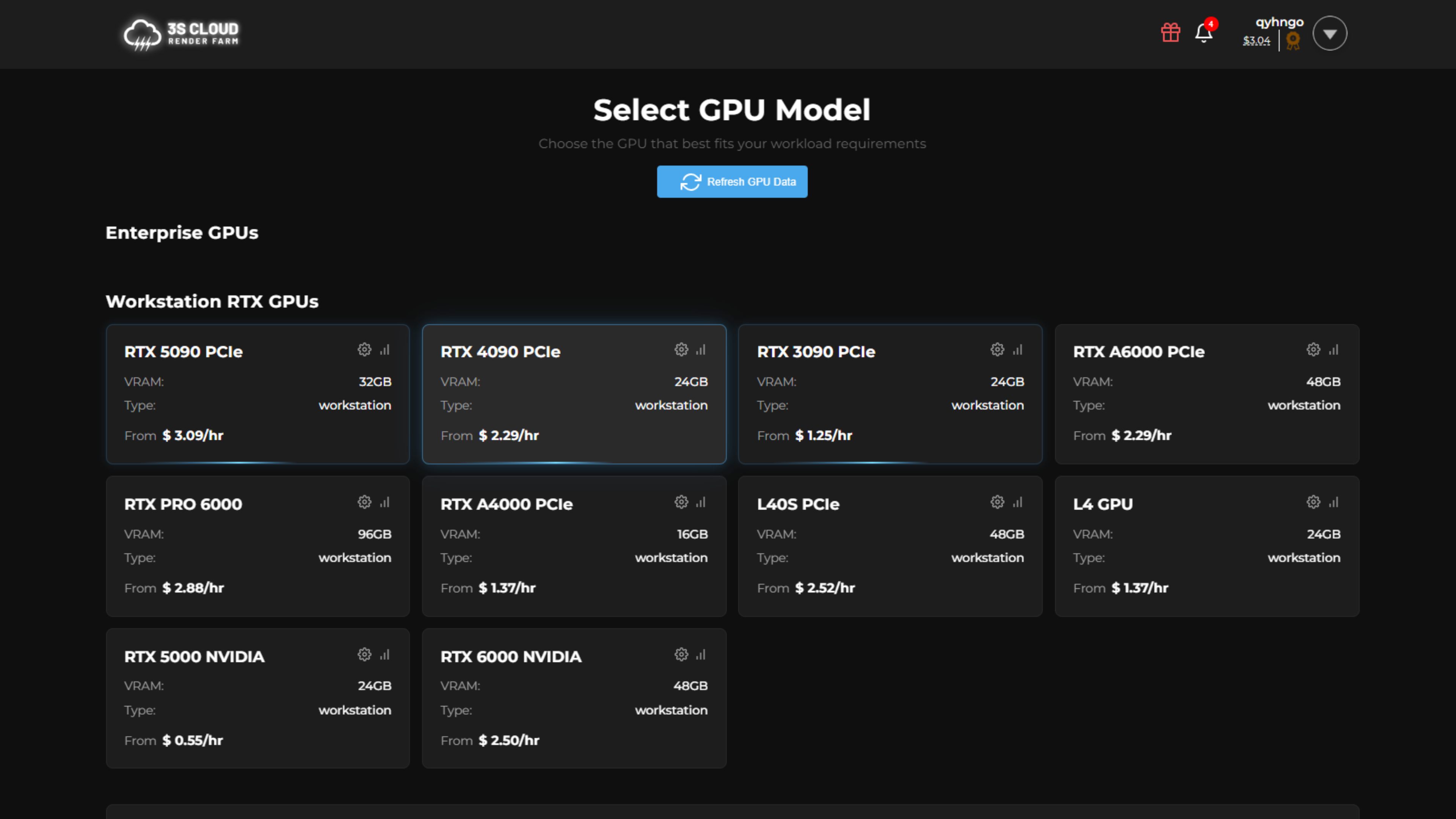
### **Step 2: Choose Your GPU**
Select the specific GPU model and the number of cards you require for your instance.
{% hint style="success" %}
💡 Note: 3S Cloud offers the latest and most powerful hardware on the market, including the RTX 5090 and RTX 4090, ensuring maximum performance for your heaviest rendering and simulation tasks.
{% endhint %}
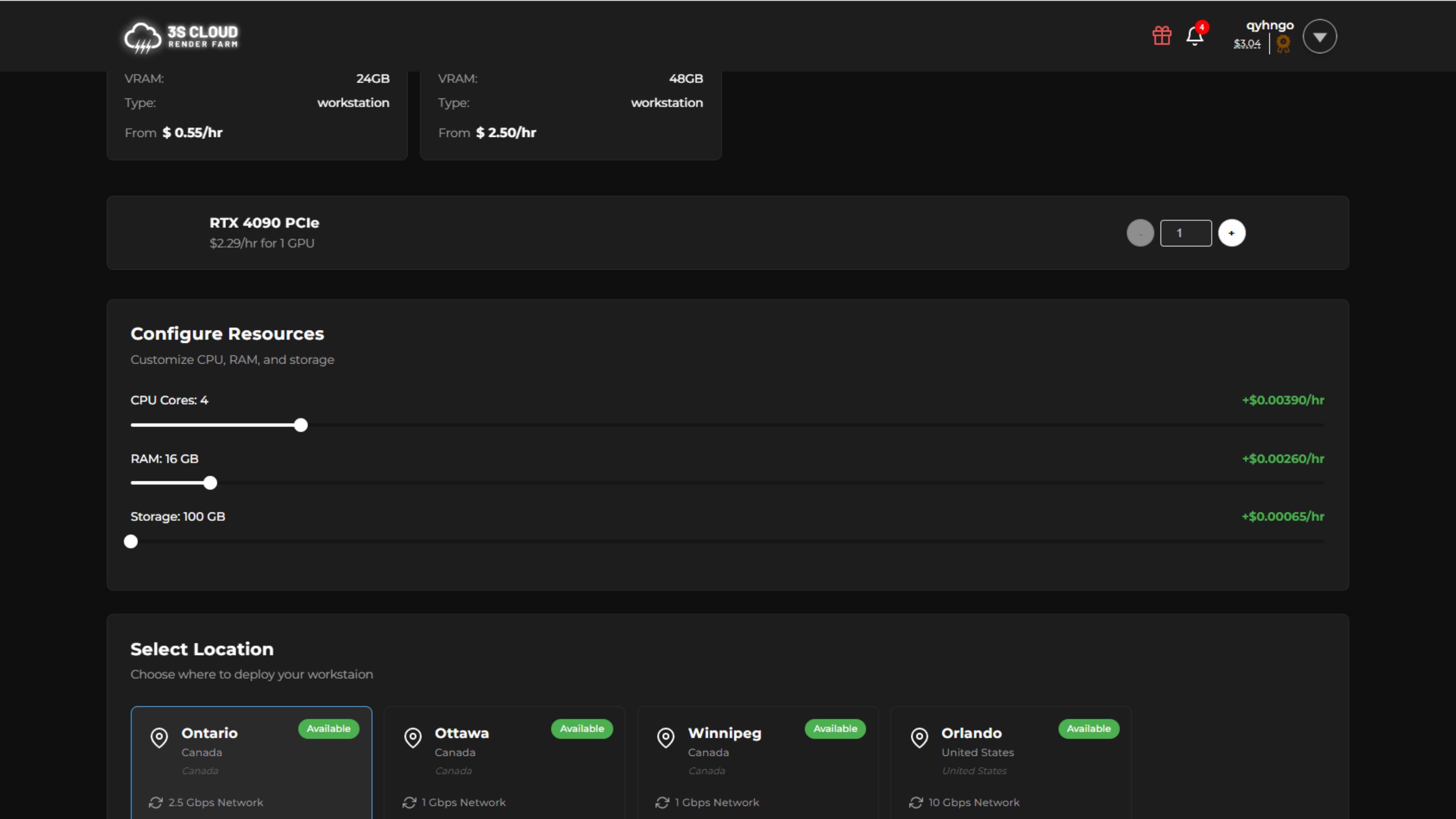
### **Step 3: Configure Resources**
Customize the system specifications to match your workflow. In the Configure Resources section, you can adjust:
* CPU Cores: Select the processing power needed.
* RAM: Choose the memory capacity.
* Storage: Allocate NVMe storage space for your project files and software.
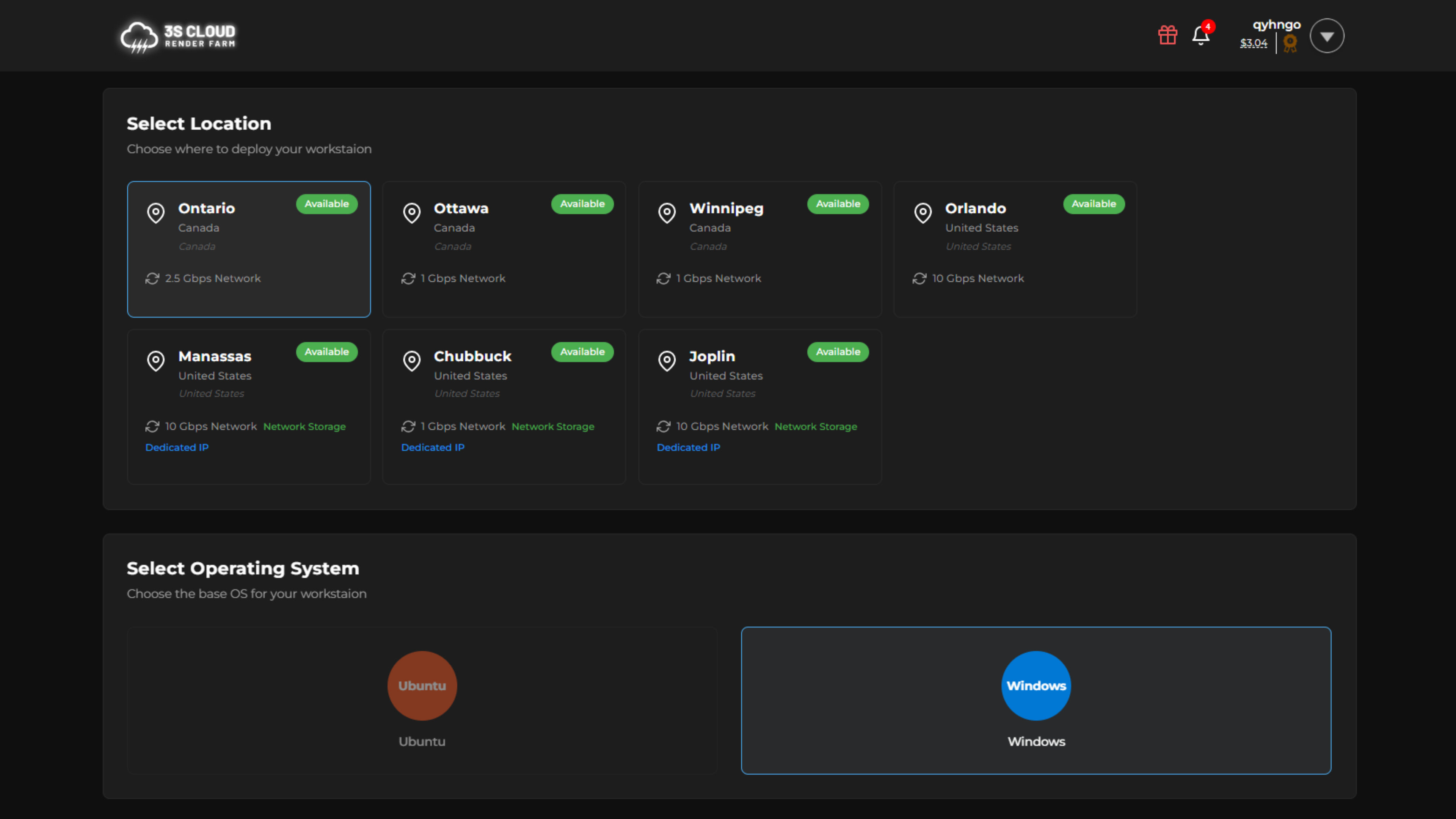
### **Step 4: Select Location & OS**
* Select Location: Choose the data center region closest to your physical location to ensure the lowest latency and best connection quality.
* Select OS: Pick your preferred Operating System (e.g., Windows 10/11).
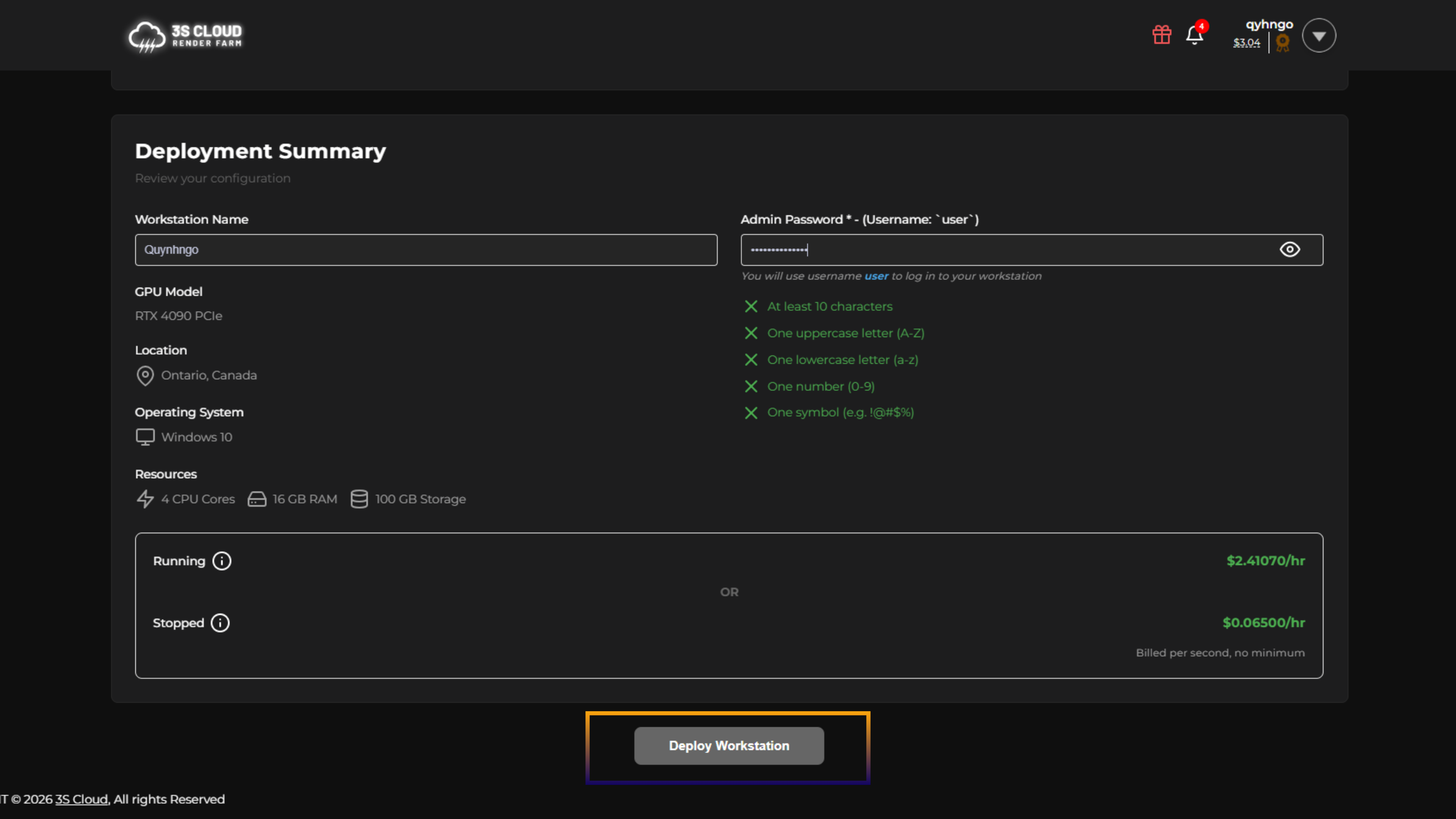
### **Step 5: Review & Security**
Before finalizing, review all your details in the Deployment Summary panel on the right side of the screen.
* Set Admin Password: Create a secure password to access your workstation.
{% hint style="warning" %}
⚠️ Important: Your password must meet the security criteria listed below the input field (e.g., must include uppercase letters, lowercase letters, numbers, and special characters). Please double-check this to avoid deployment errors.
{% endhint %}
### **Step 6: Deploy**
Once everything looks correct, click the Deploy Workstation button. Your instance will begin initializing and will be ready for connection shortly.
[3S Cloud Render Farm](https://3sfarm.com/) currently supports [Blender](https://3sfarm.com/blender-render-farm/), [Houdini](https://3sfarm.com/houdini-render-farm/), [Cinema 4D](https://3sfarm.com/cinema-4d-render-farm/), [Maya](https://3sfarm.com/autodesk-maya-render-farm/), [3ds Max](https://3sfarm.com/3dsmax-render-farm/).