> For the complete documentation index, see [llms.txt](https://docs.3scloud.io/llms.txt). Markdown versions of documentation pages are available by appending `.md` to page URLs; this page is available as [Markdown](https://docs.3scloud.io/3s-cloud-workstation/tutorial/connect-to-your-machine.md).
# Connect to Your Machine
Once your instance is deployed, follow these steps to access your cloud computer using Remote Desktop Protocol (RDP).
### **Step 1: Locate Your Instance**
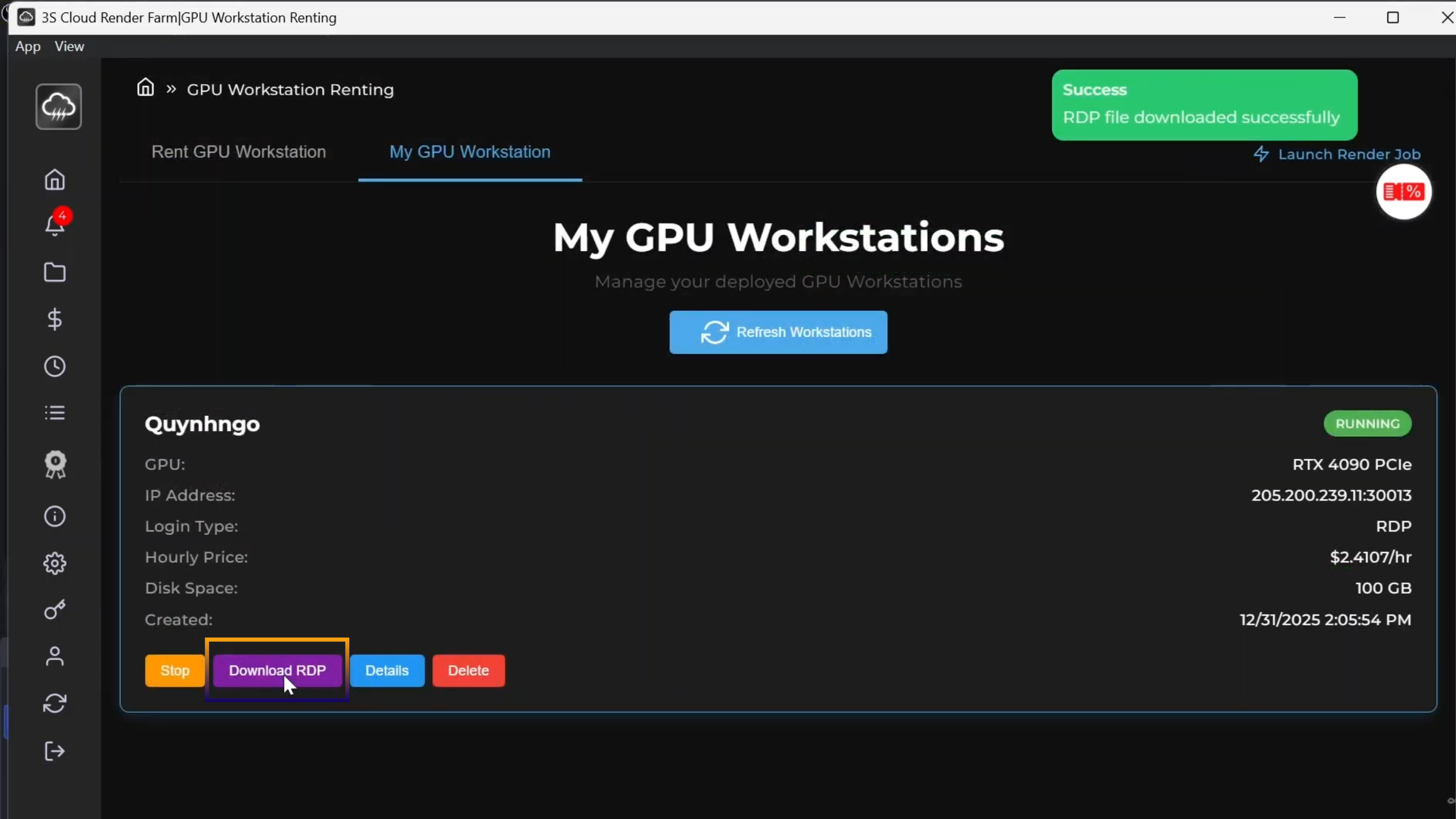
Navigate to the My Workstation tab. Here, you will see a list of your rented machines and their status.
### **Step 2: Download Connection File**
Find your target workstation and click the Download RDP button. A remote desktop configuration file (`.rdp`) will be saved to your local computer.
### **Step 3: Initiate Connection**
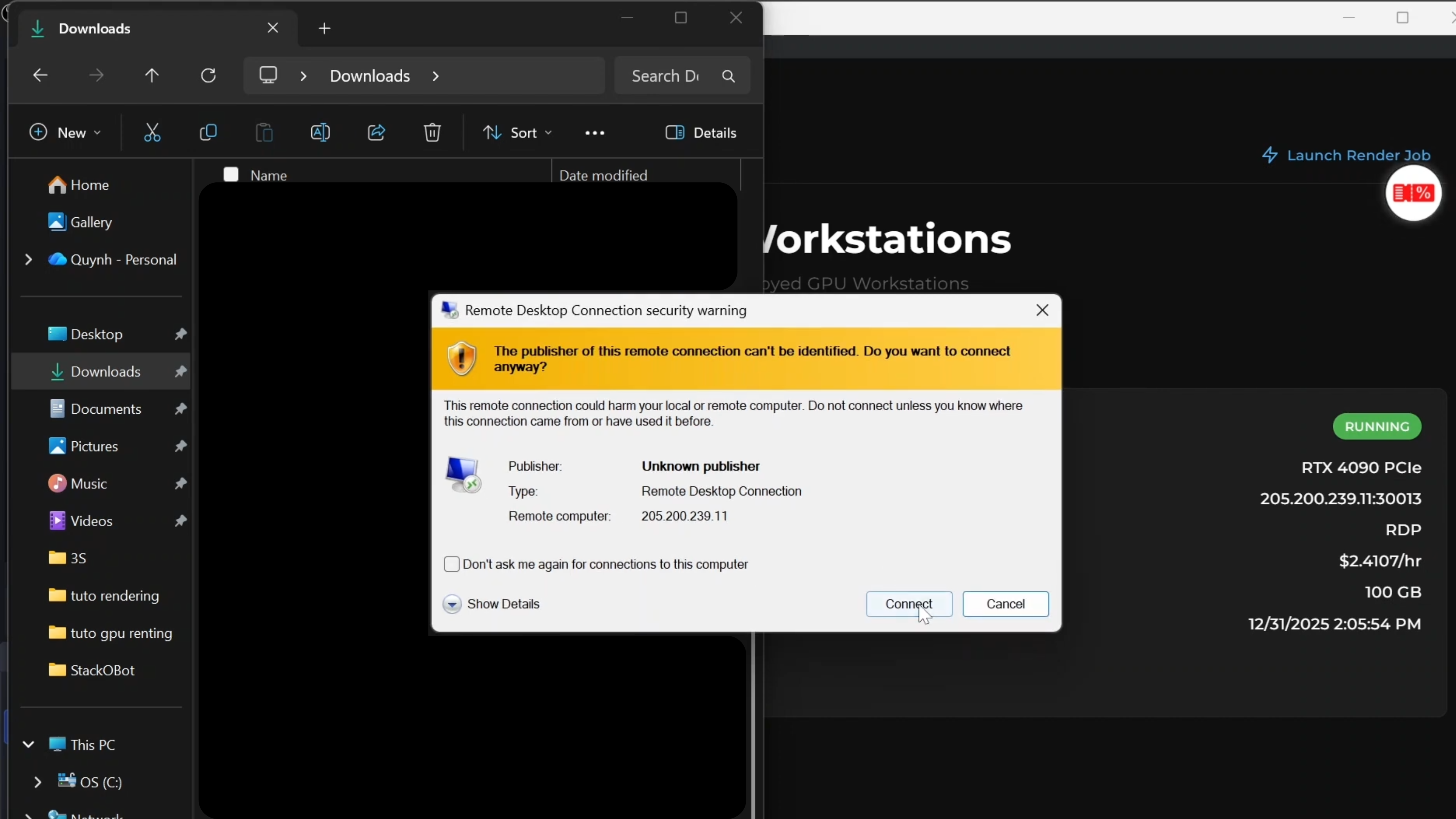
Open the downloaded `.rdp` file. A system prompt will appear; click Connect to proceed.
### **Step 4: Enter Credentials**
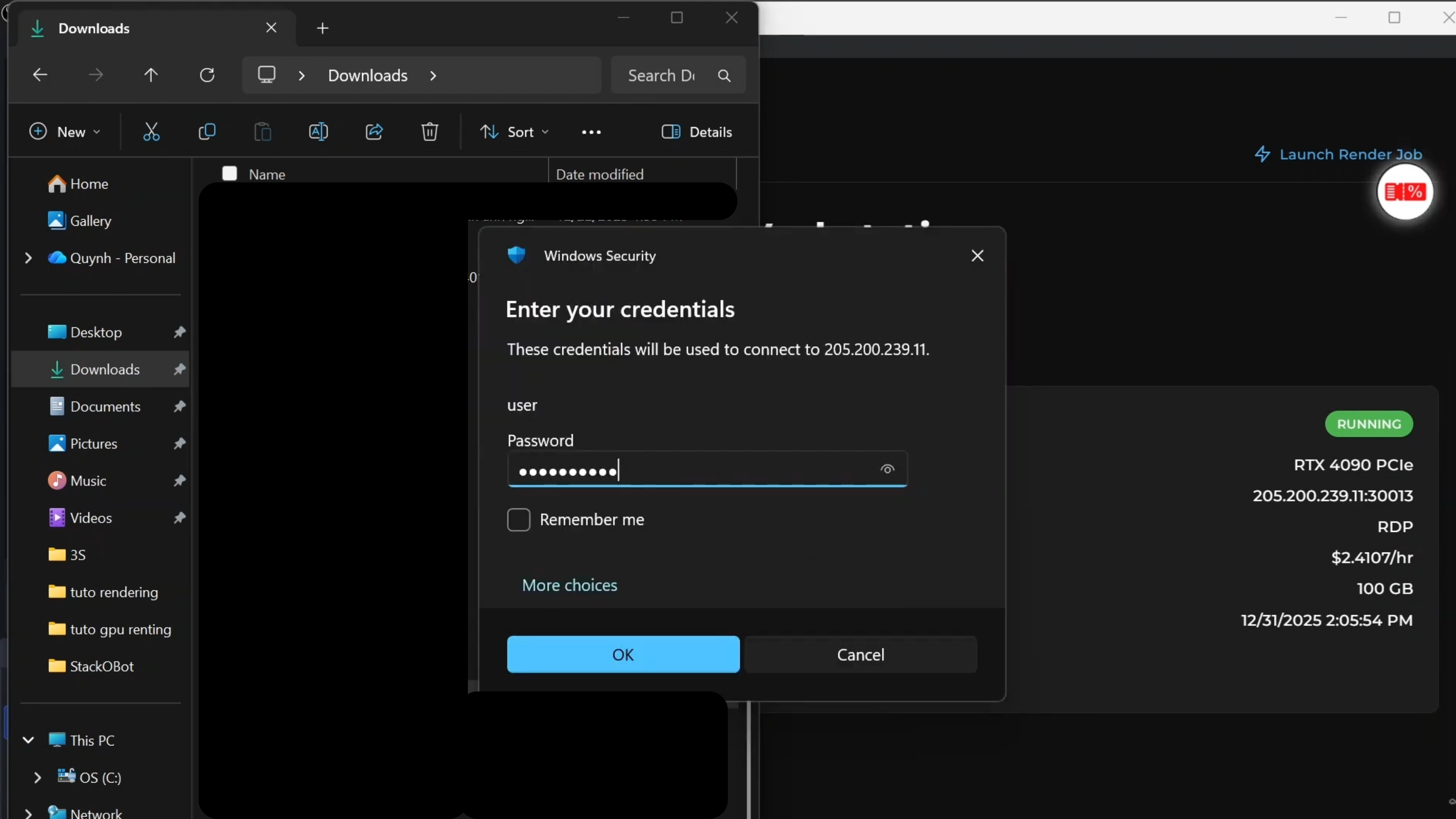
When asked for credentials, enter the Admin Password you created during the deployment step.
### **Step 5: Confirm & Access**
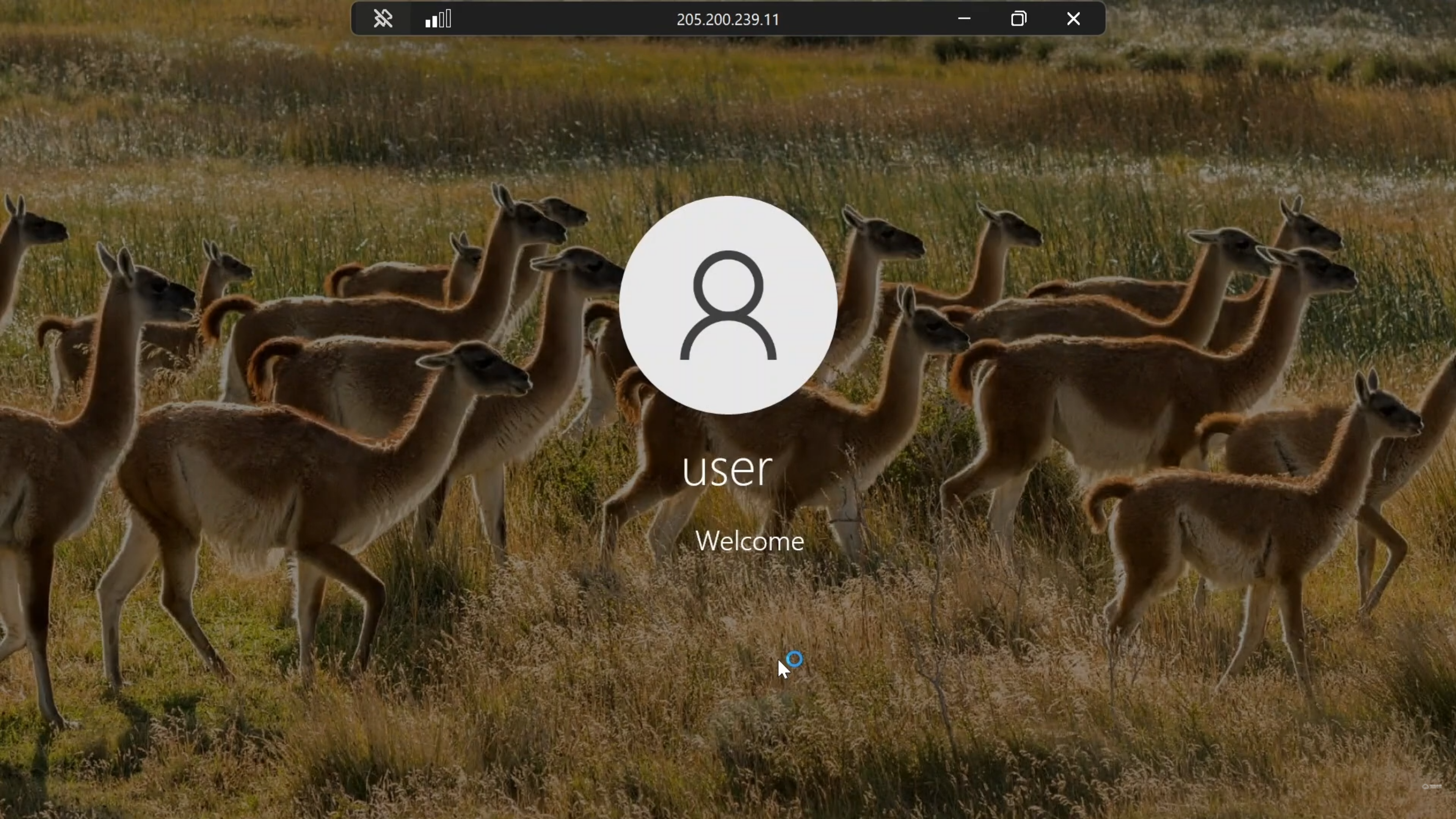
If a security certificate warning appears, simply click Yes to confirm. You will immediately be connected to the remote desktop interface and can start using the machine right away.